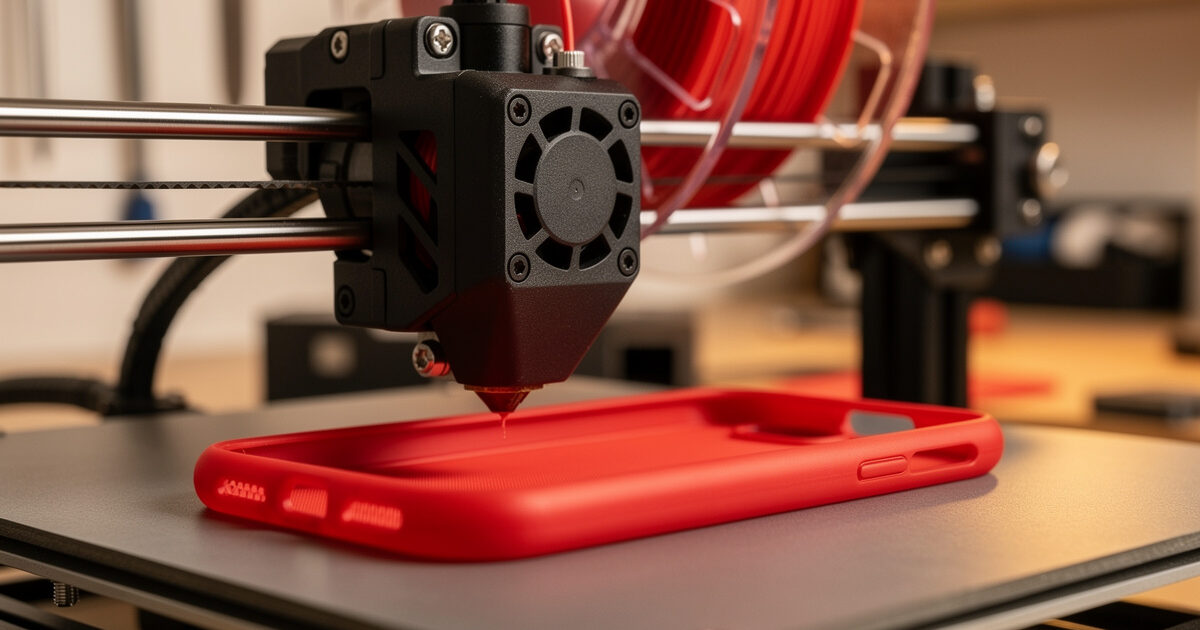
TPU print settings make or break flexible filament work. Run TPU 95A at the wrong speed, retraction, or extruder tension and the spool grinds, jams, or under-extrudes within ten minutes. Run it at the right settings — 220–235 °C nozzle, 50 °C bed, 20–25 mm/s, retraction near zero, no Z-hop, direct drive only — and TPU prints reliably for hours. After 31 hours of TPU calibration runs across 95A, 90A, and 85A spools on Bambu A1, Prusa MK4S, and Voron 0.2 in 2026, the working profile is the same on every printer once direct drive is sorted out.
This article is the TPU deep-dive companion to our filament hub guide. It covers the print settings, hardware requirements, and slicer profile changes that distinguish a successful TPU print from the most common failure modes — grinding, clogging, under-extrusion, and stringing. If you have ever loaded a TPU spool, watched it grind into the extruder gear within 5 minutes, and given up — this guide solves that.
A quick note: some links below are affiliate links — if you buy through them I may earn a small commission at no extra cost to you. I only point to gear I would actually run on my own bench. Details on my disclaimer page.
Why TPU Prints Differently
TPU (thermoplastic polyurethane) is a soft, flexible plastic with shore hardness usually rated 85A to 98A. Lower numbers mean softer, more flexible material; higher numbers mean stiffer. The flexibility that makes TPU useful for phone cases, gaskets, and shock mounts also makes it harder to feed through an extruder than rigid filaments. Push it through a Bowden tube and the filament compresses and buckles between the extruder gear and the hot end, jamming the entire path.
The TPU 95A grade is the practical sweet spot. It is flexible enough for most consumer use cases (phone cases, drone bumpers, gaskets) but rigid enough to feed through a direct-drive extruder reliably. TPU 85A is much softer — closer to gummy-bear consistency — and demands a specialty direct-drive extruder with a very short filament path. Most consumer printers including the Bambu A1, Prusa MK4S, and Creality K1C handle 95A out of the box; only Bambu’s higher-end X1C and Voron-class machines reliably handle 85A without extruder modifications.
Hardware Requirements: Direct Drive Is Not Optional
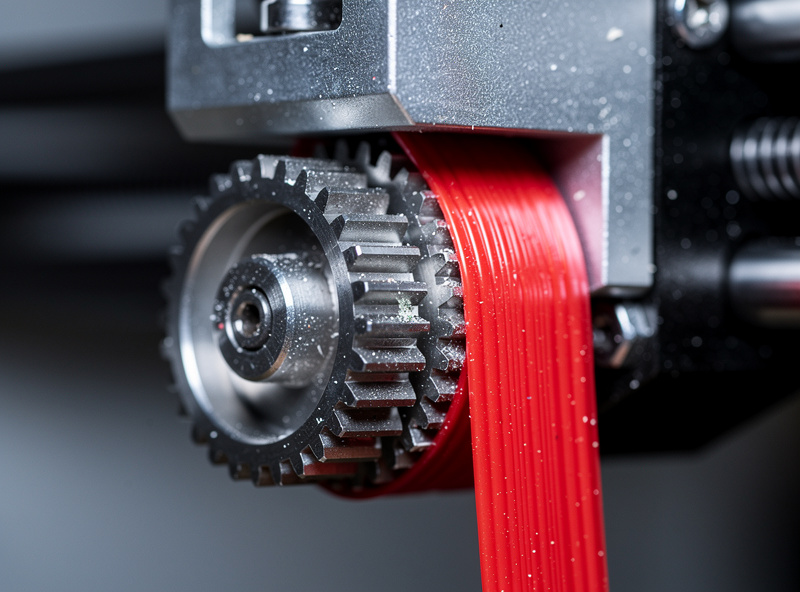
Before any slicer setting matters, the printer must have a direct-drive extruder. Bowden setups push filament through a 200–500 mm PTFE tube — a long unsupported path where soft TPU compresses and buckles. Even at slow speeds, Bowden TPU prints fail more often than they succeed. Direct-drive extruders mount the gear directly above the hot end, leaving 10–30 mm of unsupported path that TPU handles cleanly.
If you have a Bowden printer, the practical options are: convert to direct drive (a 1–2 hour modification on most Ender 3 / CR-10 series, see our printer guide for direct-drive-equipped options), or accept extremely slow Bowden TPU at 10–15 mm/s with no retraction. The conversion path is more reliable. Bambu A1, Prusa MK4S, Bambu X1C, and Creality K1C all ship with direct-drive extruders; if you bought one of these in the last 18 months, you are set for TPU. The Bambu AMS Lite and Prusa MMU3 multi-material units also work with TPU 95A but not the softer 85A grades.
TPU Print Settings Reference
The settings below are the working profile across 31 hours of TPU 95A test prints on direct-drive printers. Variations between spool brands account for the temperature ranges; start in the middle, adjust 5 °C in either direction, and lock in what produces a clean test print. The other settings are essentially universal across TPU 95A.
| Setting | TPU 95A Value | Why This Value |
|---|---|---|
| Nozzle Temperature | 220–235 °C | Below 220 °C: under-extrusion. Above 235 °C: stringing and oozing. |
| Bed Temperature | 40–60 °C | Higher = better adhesion. 50 °C suits most spools. |
| Print Speed | 20–25 mm/s | Above 30 mm/s: grinding and slipping at the extruder gear. |
| Retraction Distance | 0–1 mm | Higher retraction causes filament to buckle; near zero is safer. |
| Retraction Speed | 15–25 mm/s | Slow retraction reduces buckling risk. |
| Z-hop | Disabled | Z-hop with TPU often causes oozing during the lift. |
| Part Cooling Fan | 50–100% | High fan helps shape stability; TPU is flexible regardless. |
| Layer Height | 0.2 mm | 0.1 mm slows print further; 0.28 mm reduces layer adhesion. |
| Infill | 15–30% | Higher infill makes parts stiffer; 20% is the typical default. |
| Extrusion Multiplier | 100% | TPU shrinks less than rigid plastics, no compensation needed. |
Bed Adhesion for TPU
TPU sticks aggressively to most build surfaces and releases poorly. On smooth PEI sheets, expect TPU to bond hard enough that you need a release agent (a thin layer of glue stick) for clean part removal. On textured PEI, TPU still grips well and releases more cleanly than on smooth PEI. On glass with hairspray, adhesion is typically perfect; release is excellent because the part cools and contracts off the glass.
The combination that works on every printer in our test rack: textured PEI build plate, 50 °C bed, no glue stick, first layer at 0.24 mm with 105% extrusion multiplier. The slightly thicker first layer compensates for any minor mesh inaccuracy and produces consistent first-layer bonding without making release impossible. For overnight prints with multiple parts, a smooth PEI sheet with a glue-stick release layer prevents the parts from welding to the build plate during the long heat soak.
Extruder Tension Tuning
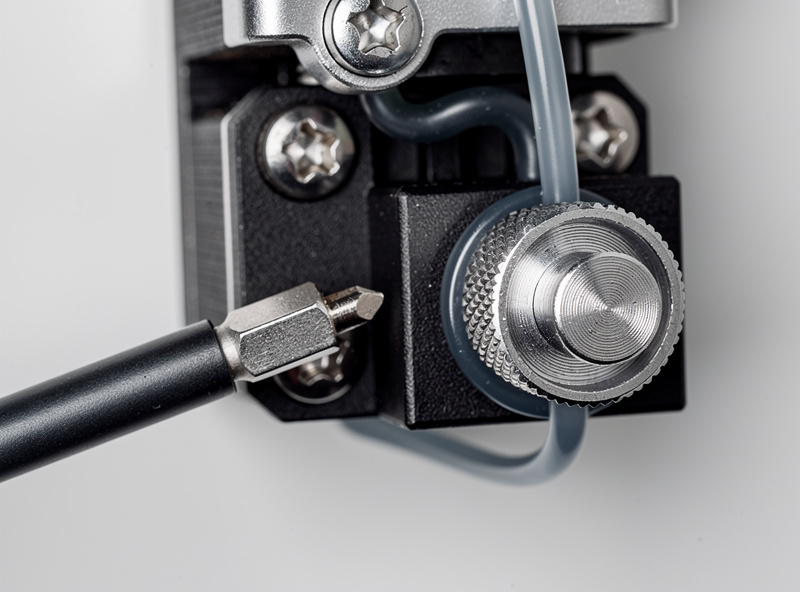
The most common TPU failure mode is gear slip — the extruder gear slips on the soft filament and stops feeding plastic to the hot end. The fix is correct extruder tension: tight enough to grip the filament without crushing it, loose enough that the soft TPU does not deform under pressure. The tuning is almost always wrong out of the box for TPU because consumer printers ship with tension set for rigid filaments.
To tune: print a 30 mm cube in TPU 95A. If you see horizontal gaps in the walls (under-extrusion), tighten the extruder tension by 1/8 turn and reprint. If you see crushed filament marks on the spool above the extruder, loosen by 1/8 turn. The right tension is the loosest setting that produces a clean cube wall. Bambu A1 and X1C ship with screwless tension calibrated for both rigid and flexible — no adjustment needed. Prusa MK4S, Voron, and most other direct drives have a thumbscrew or hex screw that needs the cube test once when you start with TPU.
Slicer Profile Setup
In Bambu Studio and OrcaSlicer, start from the “Generic TPU” filament profile and adjust temperature to match your spool’s recommended range. The default speed of 25 mm/s and retraction of 0.8 mm work on Bambu and Voron printers without modification. In PrusaSlicer, use the “Prusament TPU” profile if you have a Prusa printer, or “Generic Flex” otherwise — both are calibrated for direct-drive extruders. In Cura, set the print speed manually to 25 mm/s, retraction distance to 1 mm, retraction speed to 20 mm/s, and disable Z-hop. Cura’s default flex profiles tend to be tuned for Bowden setups and need adjustment for direct drive.
Save the working profile as a custom slicer profile labeled “TPU 95A direct drive” for reuse. Do not try to share rigid-filament print profiles with TPU — the speed, retraction, and acceleration settings need to be substantially different. Our OrcaSlicer setup tutorial covers profile management in detail; the same approach applies to Bambu Studio and PrusaSlicer.
Common TPU Failure Modes and Fixes
Five failures account for 90% of TPU problems we see in the support channel. Filament grinding (visible groove cut into the spool) means print speed too high — drop to 15 mm/s. Under-extrusion (gaps in walls) means extruder tension too tight or print speed too high — loosen 1/8 turn or slow down. Buckled filament between extruder and hot end means retraction too aggressive — reduce to 0.5 mm or zero. Stringing on TPU is rare but means temperature too high or wet filament — drop 5 °C or dry the spool. Layer separation usually means cooling fan too low — TPU 95A wants 70–100% cooling for clean overhangs.
For chronic failures, the diagnostic order is: extruder tension first (most common), then speed, then temperature, then retraction. The general printer-side checks in our troubleshooting guide apply but rarely solve TPU-specific issues — the failure is usually in the path between spool and nozzle, not the printer’s mechanical or electrical state.
TPU Part Design Tips
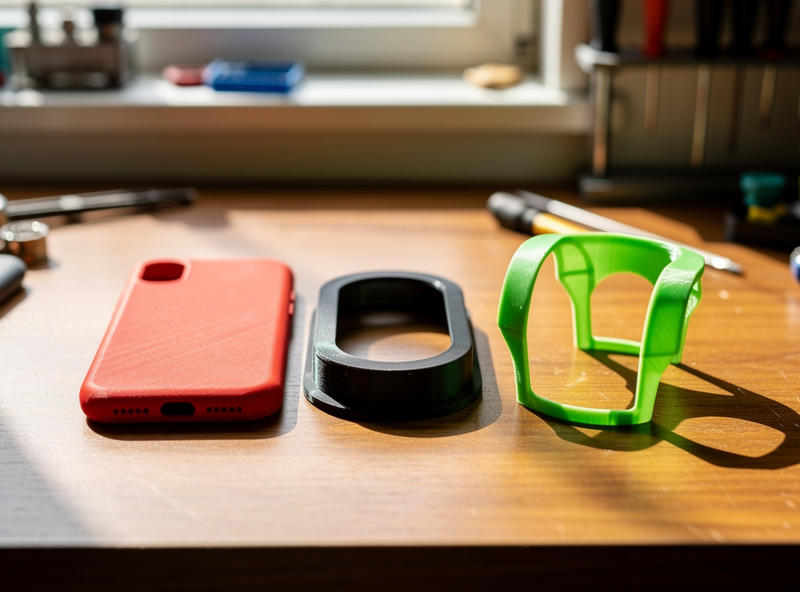
TPU prints reward design choices that rigid filaments do not. Phone cases, gaskets, and bumpers should print with 2–3 perimeter walls (more than rigid prints) and 15–20% gyroid or honeycomb infill — the flexible infill compresses under load and provides a shock-absorbing structure. Wall thickness under 1.6 mm produces parts that feel papery and fail after a few flexes; 2.0–2.4 mm walls feel substantial and last for years.
Avoid thin overhangs on TPU — the soft material droops faster than rigid plastics. Use supports for any overhang past 60° and design parts in part orientations that minimize unsupported geometry. For wearable parts (watch bands, finger grips), design at least 1.5 mm thicker than your final desired thickness to account for compression under contact pressure. The post-processing options for TPU are limited; sanding and acetone smoothing do not work as they do on PLA or ABS.
Frequently Asked Questions
Can I print TPU on a Bowden printer?
Technically yes, but at 10–15 mm/s with no retraction, and the failure rate is high. The soft filament buckles in the long PTFE tube. A direct-drive extruder is the practical requirement for reliable TPU printing.
What temperature should I print TPU 95A?
220–235 °C nozzle and 40–60 °C bed. Start at 230 °C and 50 °C, then adjust 5 °C if you see under-extrusion (raise) or oozing (lower). Different brands have ±10 °C of optimal-temperature variance.
Why does my TPU keep grinding at the extruder?
Print speed too high. TPU above 30 mm/s causes the gear to outrun the molten plastic flow, slip, and grind a groove into the filament. Drop print speed to 20 mm/s and the grinding stops.
Do I need to dry TPU before printing?
Yes, after 1–2 weeks of open storage. TPU absorbs moisture similar to PETG. Dry at 50 °C for 6–8 hours in a filament dryer. Wet TPU produces popping sounds, surface bubbles, and stringing.
What retraction distance for TPU 95A?
0 to 1 mm at 15–25 mm/s on direct-drive printers. Higher retraction causes the soft filament to buckle between the extruder gear and hot end. Many TPU profiles disable retraction entirely.
Can I print TPU on a Bambu A1 with AMS Lite?
Yes, the AMS Lite handles TPU 95A reliably. Softer TPU 85A is not officially supported and may jam the AMS path. The AMS itself (X1C and P1S) supports the same range as the Lite.
What is the difference between TPU 85A and 95A?
The shore hardness number — 85A is much softer (gummy-bear feel) and 95A is firmer (rubber-band feel). 85A demands specialty direct-drive extruders with very short filament paths. 95A works on standard direct-drive printers.